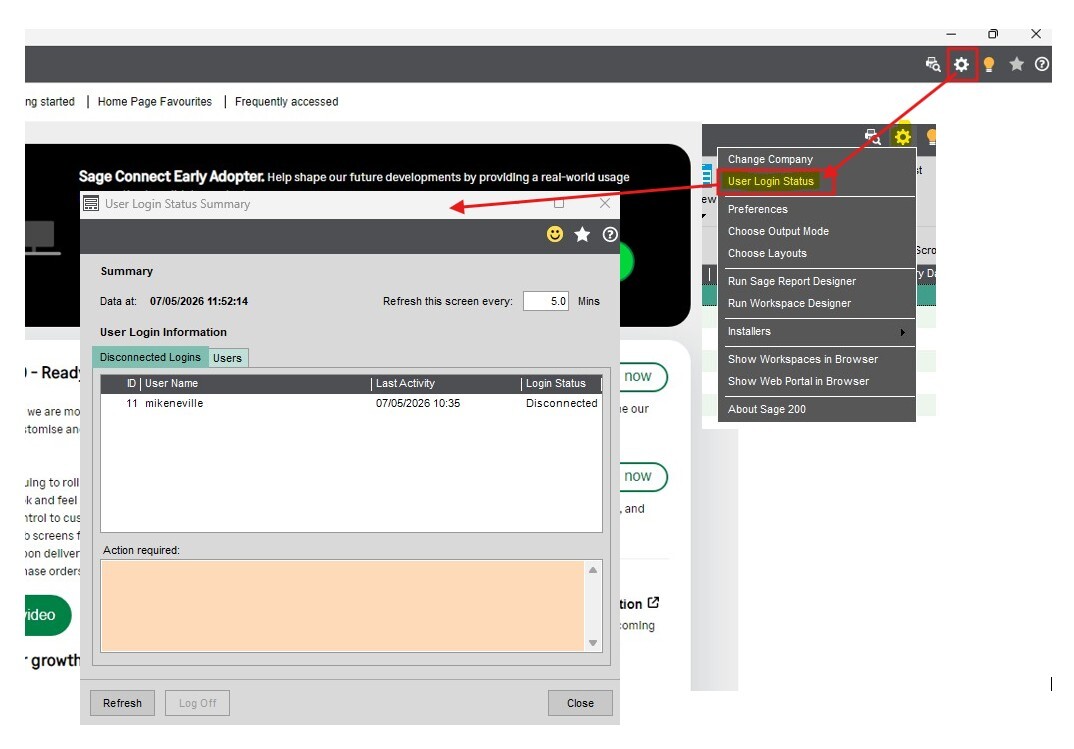

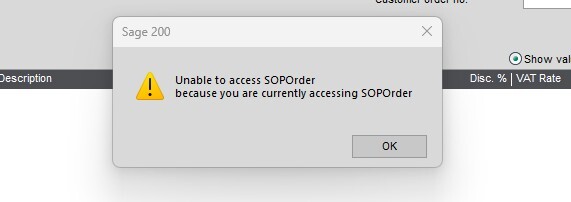
Have you ever come across a screen with this error message:
‘Unable to access SOPOrder because you are currently accessing SOPOrder’?
You know you are not currently accessing an Order, so why does Sage 200 think you are??
Disconnected Logins are the reason. These are a common issue for all Sage 200 users and can occur for various reasons. For example, this may happen if you lose internet access, or if your PC shuts down unexpectedly.
In such cases, Sage 200 can record this as a 'disconnected login', and the user's Login status is shown as Disconnected. When this happens, you and other users, may be unable to open some screens in Sage 200 because they are 'locked' by the disconnected user.
To clear these issues you can do the following:
- Select
 Tools > User login Status.
 - Go to the Disconnected logins tab.
- Select/Highlight the users to log off.
Tip: You can use 'Ctrl+click' to select multiple users at the same time.
Note: It can usually take around 5 to 10 minutes for a disconnected login to appear in the list, so if you have just crashed out of the system, you may need to be patient and wait for these to appear. - Select Log Off.